How to Run a Baseline Image Inventory
You cannot defend what you haven't indexed. Over the years, your website has likely been touched by multiple developers, guest bloggers, and agencies, creating a massive liability of "unknown unknowns."
The Baseline Image Inventory is the foundational step of your PicDefense compliance workflow. This deep-crawling engine maps every public-facing visual asset across your domain, giving you a complete Master Ledger of your exposure before you transition into continuous Site Monitoring.
Crawl Depth Options
You can control the scope of your baseline inventory depending on your needs:
Global Domain Audit
Enter your root domain (e.g., https://mywebsite.com) to index the entire digital estate.
Targeted Directory Audit
Enter a specific subdirectory (e.g., https://mywebsite.com/blog/) to limit the crawl to that section and its underlying folders.
Step-by-Step Configuration
Access the Inventory Engine
Start by logging into your PicDefense Dashboard.
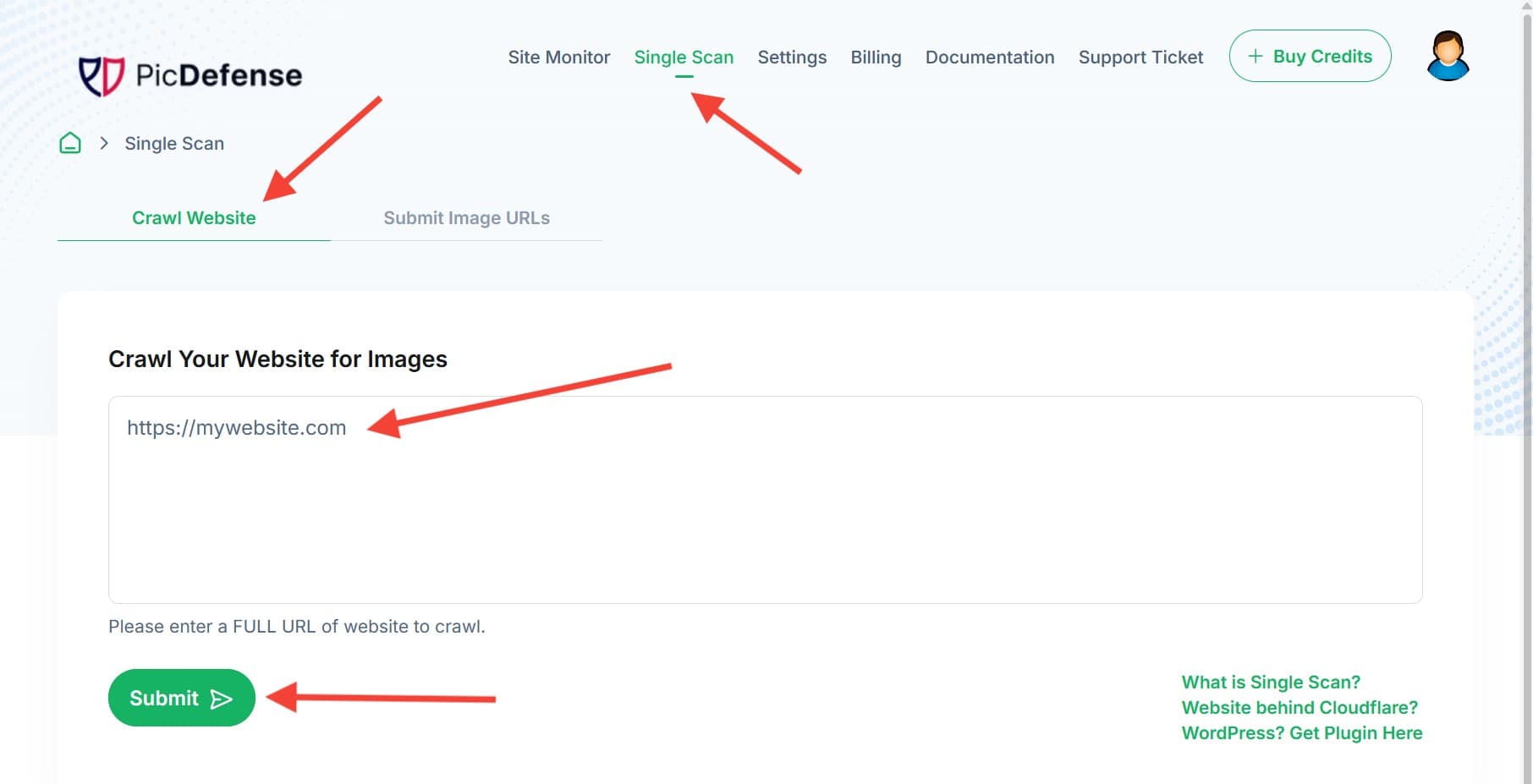
Navigate to the Inventory Engine tab in the top navigation menu.
Select "Crawl Website."
Define Your Crawl Parameters
In the input box, enter the URL you wish to audit. You can control the depth of the forensic crawl:
Credit Allocation & Triage
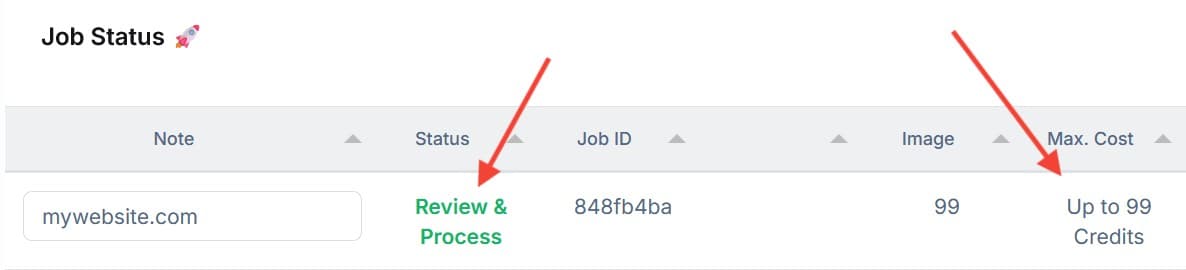
Once the initial crawl is complete, your job status will change to "Review & Process." Click this link.
You will be presented with the raw count of unique images discovered on your domain. Because PicDefense automatically deduplicates identical assets, you are only charged for unique images. Click "Submit for Processing" to run the assets through our Vision AI and reverse-search engines.
The Master Inventory Ledger
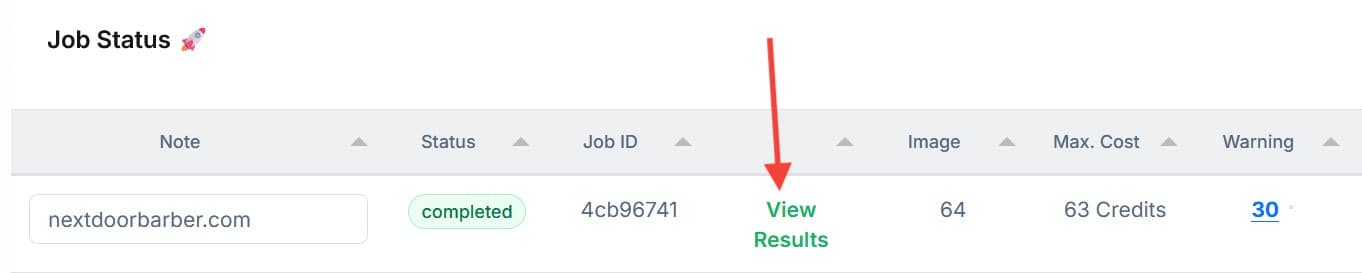
Once processing is complete, your job status will update to "Completed." Click "View Results" to open your Master Inventory Ledger. Your assets are now prioritized by their Forensic Risk Score, and you can begin attaching your licenses in the Proof Vault.