Whitelisting the PicDefense Crawler Bot
To establish an accurate baseline inventory, the PicDefense crawler bot must be able to scan your public-facing web pages. If your infrastructure utilizes a strict Web Application Firewall (WAF) such as Cloudflare, it may inadvertently block our forensic crawler, resulting in an incomplete audit.
To ensure our bot can index your entire digital estate, you must whitelist our specific User Agent.
The PicDefense User Agent
Copy the exact User Agent string below and use it in your WAF configuration:
PicDefense.io Crawler Bot Mozilla/5.0 (Windows NT 10.0; Win64; x64) AppleWebKit/537.36 (KHTML, like Gecko) Chrome/109.0.0.0 Safari/537.36Step-by-Step Configuration
Navigate to Cloudflare Security
Log into your Cloudflare dashboard and navigate to the "Security" tab, then select "WAF" (Web Application Firewall) or "Security Rules."
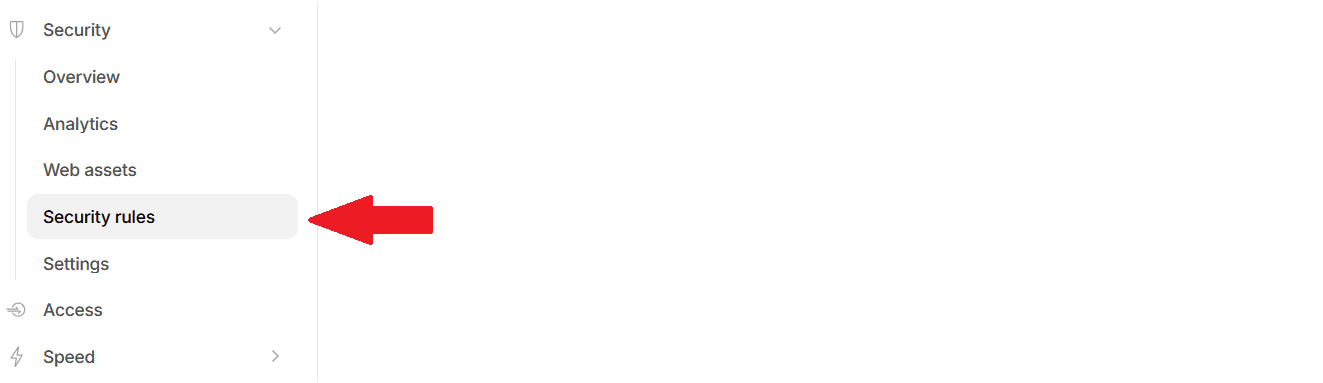
Create a New Firewall Rule
Click the "Create rule" button.
Name your rule: Whitelist PicDefense Forensic Crawler.
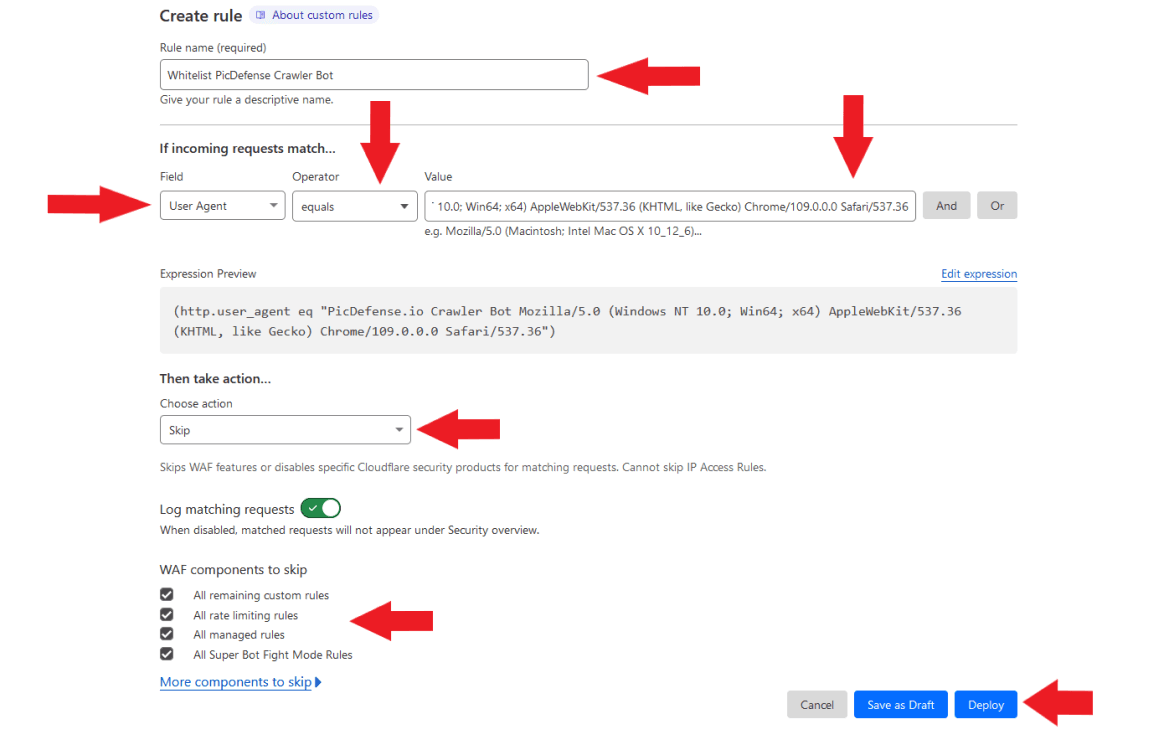
Configure the Match Condition
Under the "If incoming requests match..." section:
Set Field to "User Agent."
Set Operator to "equals."
Set Value to the exact User Agent string provided above.
Set the Action
Under the "Then take action..." section, select "Skip" (or Allow).
Check all boxes under "WAF components to skip" to ensure full access.
Deploy the Rule
Click "Deploy" to save your infrastructure settings. The PicDefense crawler will now be able to scan your entire site without being blocked by your firewall.